Mastering Panel Creation in Clip Studio Paint
Learn how to effectively use Clip Studio Paint's panel tools to organize your webtoon workflow, manage layers, and split frames. This guide covers essential techniques for creating, modifying, and structuring panels to streamline your drawing process.
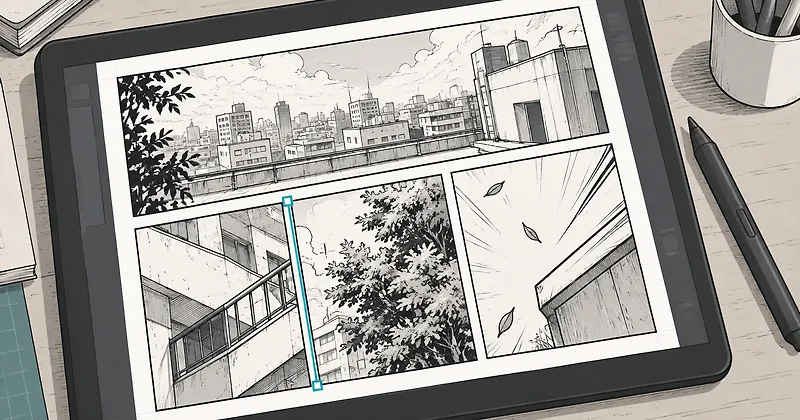
Utilizing Panel
Tools and Folders To create panels, use the Frame Border tool to draw rectangles, polygons, or freehand shapes. Placing your artwork within a frame folder automatically masks elements that extend beyond the border, keeping your workspace clean. If you need an object to overlap a border, simply move that specific layer outside the frame folder. ## Managing Panel Settings and Modifications When creating panels, you can choose to generate a new folder for each frame or add them to an existing folder to keep your layer palette organized. You can easily adjust the size and shape of any panel by using the Object tool to drag the control points. Finally, use the split tools to divide existing panels, choosing between splitting the folder itself for independent layer management

![iPad for Drawing: How to Choose the Best Model [2026]](https://img.comicstation.store/news/2026/10/guide_54ef7a5fcd72-thumb.webp)